
Embed a Form on your own website with the generated component
Copy a Form's generated component from Get code, paste it into your own page, and set where visitors land after Send. Steps, a sample of the markup, and the limits of a pasted copy.
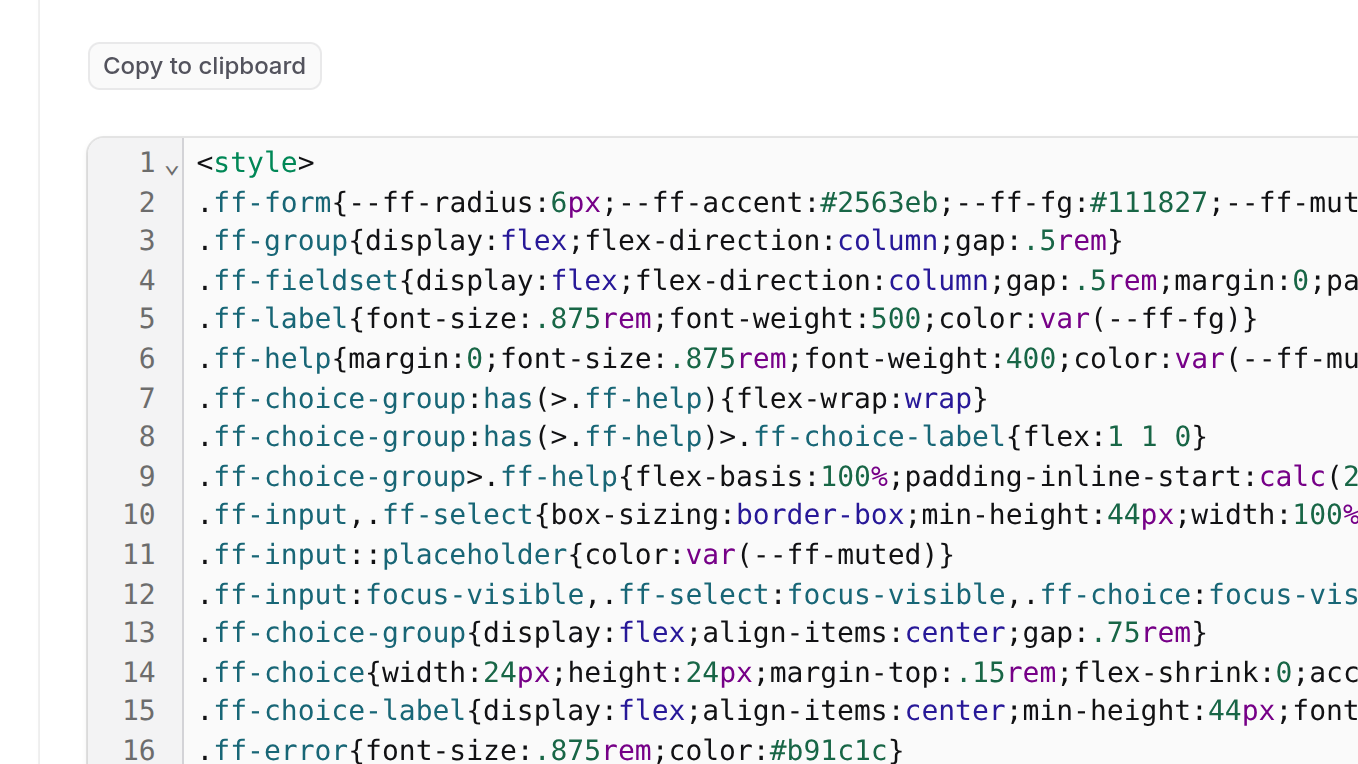
A Form does not need a page of FormFlow's. If you already have a website, you can paste the Form's generated component into it and keep your visitors on your own pages. This tutorial covers the copy, the paste, and the two things that most often surprise people afterwards: where a visitor lands after pressing Send, and what happens when you later change the Form's fields. Embedding has been part of FormFlow since v1.0.0.
What you need
A Form with at least one field, and a page of your own where you can paste HTML, or a Blade, Vue or React file. You do not need a Hosted page, which is only available on a paid plan. Nothing in Get code checks your plan, so a Team on the Free plan can embed a Form too. The plan's Submission allowance still applies to what the Form receives.
Copy the generated component
Open the Form in the panel. In the editor header, press Get code. On a Form that has never received a Submission it is the highlighted button. On every other Form it sits under Tools. The Forms list has a Get code action on each row as well.
The window is titled Paste-ready component. Its first line reads "Point your form at" followed by the Form's endpoint, which ends in the Form's token. That endpoint is the only address your page needs.
Choose a Style. One Style drives every tab and the Preview, and Minimal is the default. The Style is written into the copy, so a different Style later means copying again.
Pick the tab for your stack: HTML, Blade, Vue or React. The Preview tab draws the HTML version inside the panel so you can check it before you paste anything.
Press the Copy to clipboard badge at the top of the tab and paste the result into your page where the Form should appear.
What the HTML copy contains
The HTML tab is an ordinary form that posts to your Form's endpoint. This is an abridged sample for a Form with an Email field. YOUR_FORM_TOKEN stands in for the token, and in the real copy a style element holding the Style's CSS comes first.
<form action="https://formflow.digital/api/v1/f/YOUR_FORM_TOKEN" class="ff-form" lang="en" dir="ltr" method="post">
    <div class="ff-group">
        <label class="ff-label" for="ff-email" dir="auto">Email<span aria-hidden="true"> *</span></label>
        <input class="ff-input" id="ff-email" name="email" type="email" dir="auto" autocomplete="email" required>
    </div>
    <!-- ...one group per field... -->

    <div aria-hidden="true" class="ff-honeypot">
        <label for="ff-ff_xxxxxxxx">Leave this field empty</label>
        <input autocomplete="off" id="ff-ff_xxxxxxxx" name="ff_xxxxxxxx" tabindex="-1" type="text">
    </div>

    <button class="ff-button" type="submit">Send</button>
</form>
Two parts deserve a word. The field names, such as name="email", are what appear as answers in your Submissions, so change them in the Form rather than in your page. The off-screen input is a spam trap that people never see and bots tend to fill. Its name is generated for each Form, shown here as ff_xxxxxxxx. Leave it in place.
Decide where visitors land
The HTML and Blade copies are native forms. When someone presses Send, the browser posts to FormFlow and shows whatever FormFlow answers. With no redirect, that answer is a short JSON message. It is accurate, but it is not what you want a visitor to read. The panel says as much beside the setting: "Submitters of the plain HTML form will land on a raw JSON response."
In the Form's editor, open the Delivery tab.
Under Where the submitter lands, fill in Redirect submitters to with a thank-you page on your own site. It must be an http or https address.
Save the Form.
The React and Vue copies work differently. They post in the background and show their own confirmation message in place, so the redirect only matters for HTML and Blade.
Limit where posts may come from
By default a Form accepts a post from any origin. On the Security tab, under Where submissions may come from, Allowed origins takes hostnames only, with no scheme or path. Its helper text says an empty list allows any origin. Add your site's hostname, for example example.com, and posts from other origins are turned away. The switch below it, Reject submissions with no Origin header, also turns away posts that carry no origin at all.
If a test post from your page is turned away, a mistyped hostname is the usual cause. FormFlow keeps refused Submissions you can act on, so fix the list, then look under Refused in the panel to recover them.
Turnstile and your Content Security Policy
Two more things apply only if you use them. First, the Require a Turnstile challenge switch on the Security tab. FormFlow's built-in Turnstile key covers only pages FormFlow serves, so on your own site you need your own Cloudflare Turnstile key, entered in Team settings. Without one, the copy carries the placeholder YOUR_TURNSTILE_SITE_KEY and every submission from your page is scored as spam.
Second, if your site sends a Content Security Policy, Get code prints the directives to add, on the line that begins "If your site uses a Content Security Policy (CSP)". For the plain copy that is a script-src that allows 'self' and challenges.cloudflare.com, a frame-src for challenges.cloudflare.com, and a connect-src for the origin of your Form's endpoint. Copy the line from the window rather than from here, because it is built for your Form.
Check it works
Open your page and send a test entry through the pasted form.
Confirm you land where you expect: your thank-you page, or the confirmation message in a React or Vue copy.
Open Submissions in the panel and find the entry. If it is missing, check Refused before you change anything.
Limits to know about
A pasted copy does not follow later changes to the Form's fields unless you use Live rendering or copy again.
The Style is fixed when you copy. It cannot be changed from the Form afterwards.
The redirect applies to native forms only.
Allowed origins narrows browser traffic. It does not authenticate anyone.