
v1.13: duplicate a form in one step
v1.13.0 adds Duplicate: a copy of a Form in the same Team, with its fields, steps and settings. Submissions, webhooks and the Google Sheets destination stay behind.
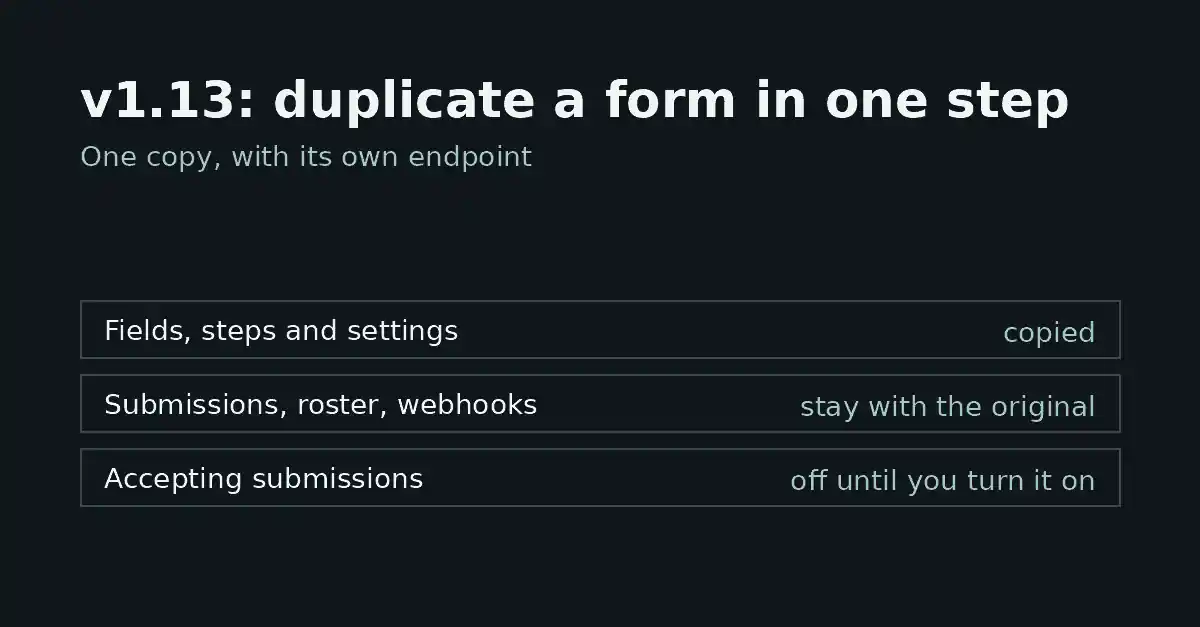
FormFlow v1.13.0, released on 2026-09-30, adds one action: Duplicate. It makes a copy of a Form in the same Team, so you can start from a Form that already works instead of rebuilding it field by field. This post covers where the action lives, what the copy keeps, what stays behind with the original, and the steps that remain yours afterwards. The Changelog entry for v1.13.0 is the record; this is the longer explanation.
Where the action is
Choose Duplicate on any Form in your Forms list, or under Tools in the Form's editor. FormFlow creates the copy in the same Team as the original. The Release describes a copy inside one Team and nothing else, so do not assume you can copy a Form into a different Team.
The copy has the fields, steps and settings the Form had when it was last saved. Read that literally: edits sitting unsaved in the editor are not part of the copy. If you want them in, save first, then duplicate.
What the copy keeps
Everything that makes up the Form's configuration comes across. The Release names these explicitly:
Fields and steps.
Settings in general, as saved.
The answer key.
The hosted page.
The receipt.
Digest recipients.
Security settings.
That makes the copy a working starting point rather than a blank Form with a similar name. A graded quiz keeps its answer key, a Form with a receipt keeps its receipt, and a Form with a hosted page keeps its hosted page.
What stays with the original
Four things do not move. They stay with the original Form:
Submissions.
The roster.
Webhooks.
The Google Sheets destination.
The first two are usually what you want left behind: a new Form should start without the original's responses. The last two are the ones to check. If the original sends each Submission to a webhook or into a Google Sheets destination, the copy does not, until you set those up again on the copy.
Its own endpoint, and closed until you open it
The copy gets its own endpoint. That has one practical consequence: the embed code or hosted link of the original keeps sending to the original. The copy needs its own embed code or its own hosted link, and anything you paste from the original's page will submit to the wrong Form.
The copy also does not accept Submissions until you turn it on. That gives you room to work in: you can change the copy, replace the destinations that stayed behind, and place its new embed code or link on a page before a single Submission can arrive.
A checklist before you turn the copy on
Open the copy and read its settings. It carries the original's receipt, digest recipients and security settings as saved, so check that each still suits the new Form.
If the Form is graded, check the answer key against the questions you have changed.
Re-create any webhook or Google Sheets destination you need. The original's did not come across.
Take the copy's own embed code or hosted link and put it where the new Form will live.
Turn the copy on only after the steps above are done.
Where it is blunt
Duplicate copies; it does not judge. It does not review the copied settings for you, so a receipt, an answer key or a list of digest recipients that no longer fits the new Form is carried over just the same. It does not move Submissions, and it does not carry the original's webhooks or Google Sheets destination.
The Release also describes a copy made once. It does not describe any ongoing link between the two Forms, so treat them as independent from the moment the copy exists, and expect to maintain each separately.