
Build a microsite around your forms
No website to put a form on? Start a Microsite from a Starter page, point it at your Team's forms and publish. Publishing needs a paid plan.
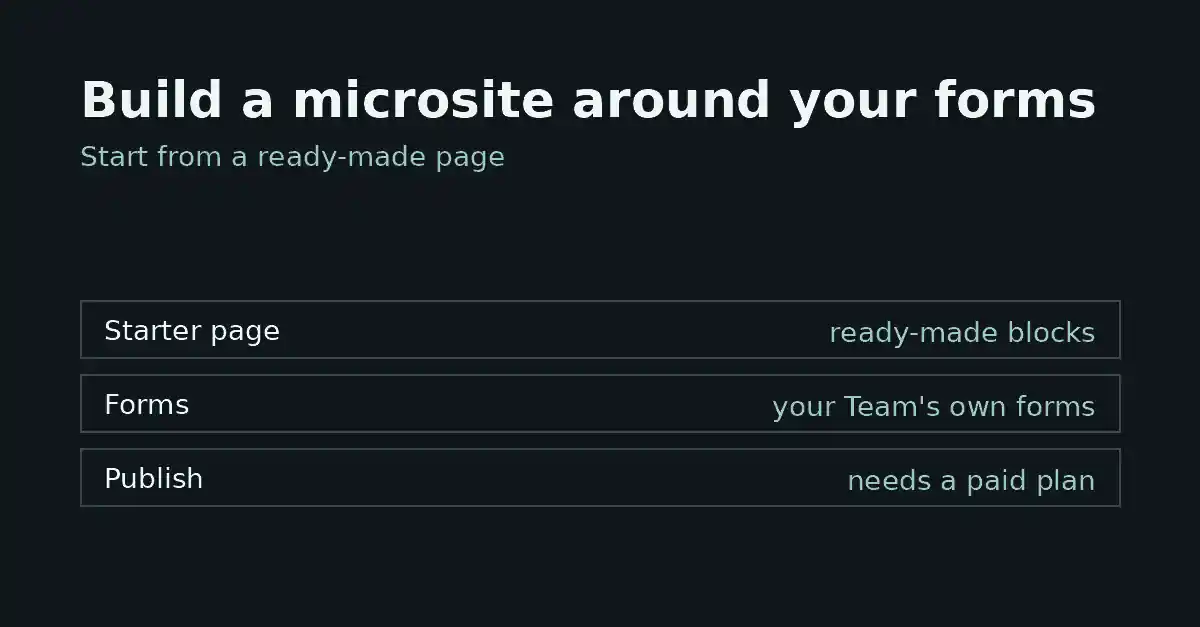
A form needs somewhere to live. If you have no website to put it on, a Microsite is a public page composed from ready-made blocks and published by your Team on FormFlow's hosted origin. This tutorial walks through the shortest path the Releases describe: start from a Starter page, point it at your Team's forms, and publish. Microsites arrived in v1.4.0 (2026-09-22); Starter pages, three more themes and the calmer builder arrived in v1.46.0 (2026-10-11).
Before you start
Publishing needs a paid plan. The v1.4.0 entry says so directly.
Create the form or forms first. A Starter page ends on your most recently created form that can be drawn in place, and a Microsite can only draw forms your Team already has.
Know the language. A Microsite is written in one language, and a Team can have many Microsites.
The steps
Create a Microsite. When you create one, or open one that is still empty, you can pick a Starter page.
Pick the Starter page closest to the job. Besides the default, a hero and closing call to action, the six the v1.46.0 entry names are Event registration, Waitlist or private beta, Service quote request, Local business enquiry, Guide download and Product launch. Each brings its own sections, a theme that suits it, and sample words in brackets.
Rewrite every bracketed phrase. The brackets mark words that are placeholders, not copy you should publish.
Check which form the page draws. The Starter page ends on your most recent form. If the page should draw a different one, change it with the builder's form picker, which lists the Team's forms the page can draw in place.
Choose the look. Ivory atelier, Midnight, and Sage and stone joined the five existing themes in v1.46.0. You can also set a heading font, a body font and an accent. An accent is a named choice, not a colour value.
Reorder or remove sections as you need. Buttons that a Starter page links to its form follow that form wherever you move it. If the form is removed or hidden, the button is left out rather than leading nowhere.
Fill in the page's search and sharing settings. These save live and are not part of the draft.
Preview, then publish. Publishing copies your draft over the published page. A preview is never indexed.
If you would rather start from a sentence, v1.4.0 also added Build with AI: you describe the Microsite you want and AI drafts it for you to edit. The draft is a starting point, not a finished page, and the v1.46.0 entry says it can choose the new themes too.
What the Starter page does to your draft
A Starter page is copied in once, into an empty draft only. Nothing is ever placed over sections you have already added, so picking one in a page that has content does not overwrite it. It also keeps no link back to where it came from. After the copy, the sections are yours, and later changes to FormFlow's Starter pages do not reach your Microsite.
Limits to know about
Publishing needs a paid plan, and a published Microsite is served only while your Team holds one. If the Team leaves a paid plan, the page goes dark with the Team's hosted pages.
Not every form can be drawn in place. The form picker does not offer a form gated by a roster or dealt as question cards. Where a page already holds one, it shows as a link to the form's hosted page, and as nothing while that hosted page is not served.
Search and sharing and the analytics property save live. Blocks, theme, fonts and accent follow the draft and reach the public page only when you publish.
Pages you had already published when v1.46.2 shipped keep linking exactly where they did.
Themes are a closed set that FormFlow writes. You choose a named theme and a named accent; you cannot enter your own colour values.
Lists such as features, steps and questions keep at least one item, so a page never shows a heading over nothing.
Each Microsite has one language.
Where it is blunt
A Starter page gives you structure, a matching theme and placeholder wording. It does not know your business, your prices or your dates, and it will not write the copy you leave in brackets. The Releases do not state a number of blocks or sections, and this tutorial does not either: what you get is what the Starter page you pick brings. Publishing is a deliberate act, so check the preview on a narrow screen before you share the link.