
Export only the columns and Submissions you need
Choose the columns of a CSV or Excel export, or tick specific Submissions and use Export selected. How the file reaches you, what is in it, and the limits of an export.
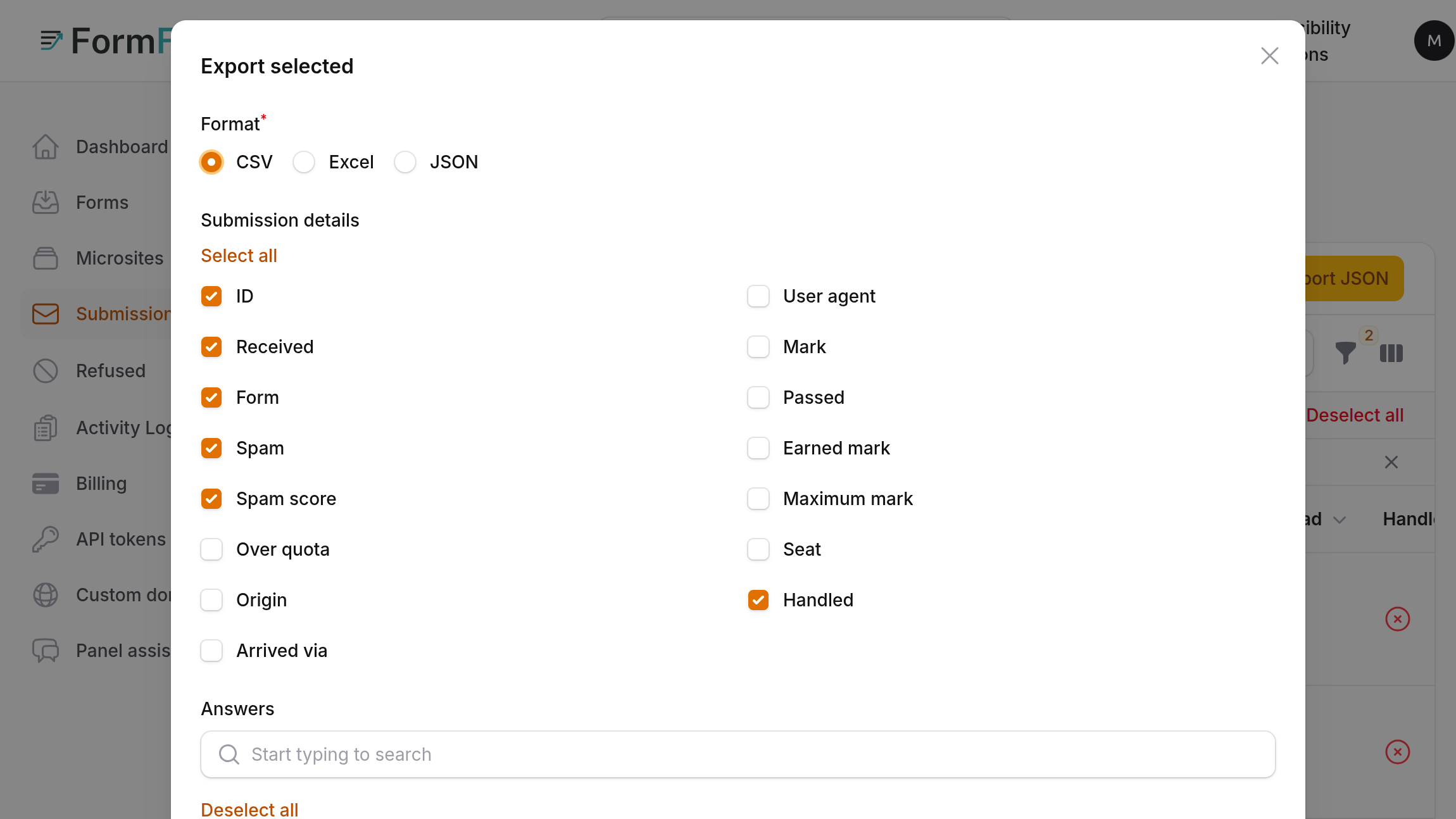
An export used to be everything or nothing. Two changes let you take only what a colleague or a spreadsheet needs: you can choose the columns of a CSV or Excel file (v1.24.0), and you can tick particular Submissions and export just those (v1.40.0). This tutorial walks through both, then covers what the file contains and where an export stops.
The two ways to export
The Export CSV, Export Excel and Export JSON buttons above the Submissions table export everything the table's filters currently show.
Export selected exports only the rows you have ticked, in any of the three formats.
Both work on the Submissions inbox, and both send the file by email rather than downloading it in the browser.
Export a chosen set of columns
Open Submissions in the panel.
Set the filters for the Submissions you want. The Spam filter starts on Not spam, so spam is left out unless you change it. You can also filter by Form, by Received from and Received until, and by Unread, Follow-up or Marking.
Press Export CSV or Export Excel above the table. Export JSON asks nothing and is covered below.
A window opens with the columns to include. Submission details are the facts FormFlow records about each Submission: ID, Received, Form, Spam, Spam score, Over quota, Origin, Arrived via, User agent, Mark, Passed, Earned mark, Maximum mark, Seat and Handled. Answers lists each question your forms ask, under its label, with the key beside it when the two differ. Other answers not on any form is one box of its own.
Everything starts ticked, so pressing Export without changing anything gives the file you would have had before columns were selectable. Untick what you do not need. You must keep at least one column.
Press Export. A notification, Export queued, says the file is being prepared and that FormFlow will email a download link.
Export only the Submissions you tick
In the Submissions table, tick the rows you want. A selection can span several pages. You can also use select all and untick a few.
Open the bulk actions menu and choose Export selected.
Choose a Format: CSV, Excel or JSON. CSV is preselected.
For CSV and Excel, choose the columns exactly as above. The Answers list holds only the questions of the Forms you selected, not of every Form in your Team.
Press Export. Once the export is queued, the selection is cleared.
Export selected also respects the current filters. A ticked row that the filters no longer show is not exported, and if none of your ticked rows match, you are told so and nothing is queued. A refused export keeps your selection, so you can trim it and try again.
A worked example
Suppose a colleague needs the names and messages of this month's real leads and nothing else. Set Received from to the first of the month and leave Spam on Not spam. Press Export CSV. In the window, keep Received and Form, and keep the answers for name, email and message. Untick Origin, User agent, Spam score, Over quota, Seat and Handled, which say nothing about the lead and carry details you may not want to pass on. Press Export. The email brings a file with only the columns you left ticked. For a one-off, such as the few people who passed a quiz, tick their rows instead and use Export selected, leaving Mark, Passed and Earned mark ticked.
How the file arrives
FormFlow builds the file in the background and emails you a link. The link works once, for you, within the hour. If you are not signed in when you open it, FormFlow asks you to sign in first and the file waits. No other account can download it, so a forwarded email does not hand your Submissions to whoever receives it. An email service that opens links to scan them no longer uses the link up.
What is in the file
In a CSV or Excel file, each Submission detail has a heading that begins with an underscore, such as _received_at. Answers use their own key as the heading.
A submitter can send an answer named like a column FormFlow records, such as the origin. The recorded column always holds what FormFlow recorded, and the submitter's answer appears beside it under a heading that starts with answer:.
A Handled column carries the time a Submission was marked handled, and is empty while it is open.
A JSON export carries the stored answers whole, with no column choice. It is the one to use for software. Do not use it to hand over a trimmed set to a person.
Limits to know about
There is a ceiling on how many rows one export may hold. Past it, a notification says it is too many Submissions to export at once. For the table's buttons it tells you to narrow the filters, by Form or by date range. For Export selected it tells you to select fewer.
Large exports are queued and can take a while. If one cannot be finished, you get an email saying so, with a suggestion to export fewer Submissions.
Unticking a column keeps it out of the file only. The data stays in FormFlow, and an export, once sent, is a copy you now hold. Deleting Submissions later, or setting a retention period, does not reach into files you already made.
The column list is built from your Forms' current fields. Answers to questions a Form no longer asks, and answers no Form declared, fall under the single Other answers not on any form box.