
v1.44: your own domain for a Hosted page or Microsite
Release v1.44.0 lets Starter and Pro Teams serve a Hosted page or Microsite from a subdomain they own, after adding a TXT and a CNAME record.
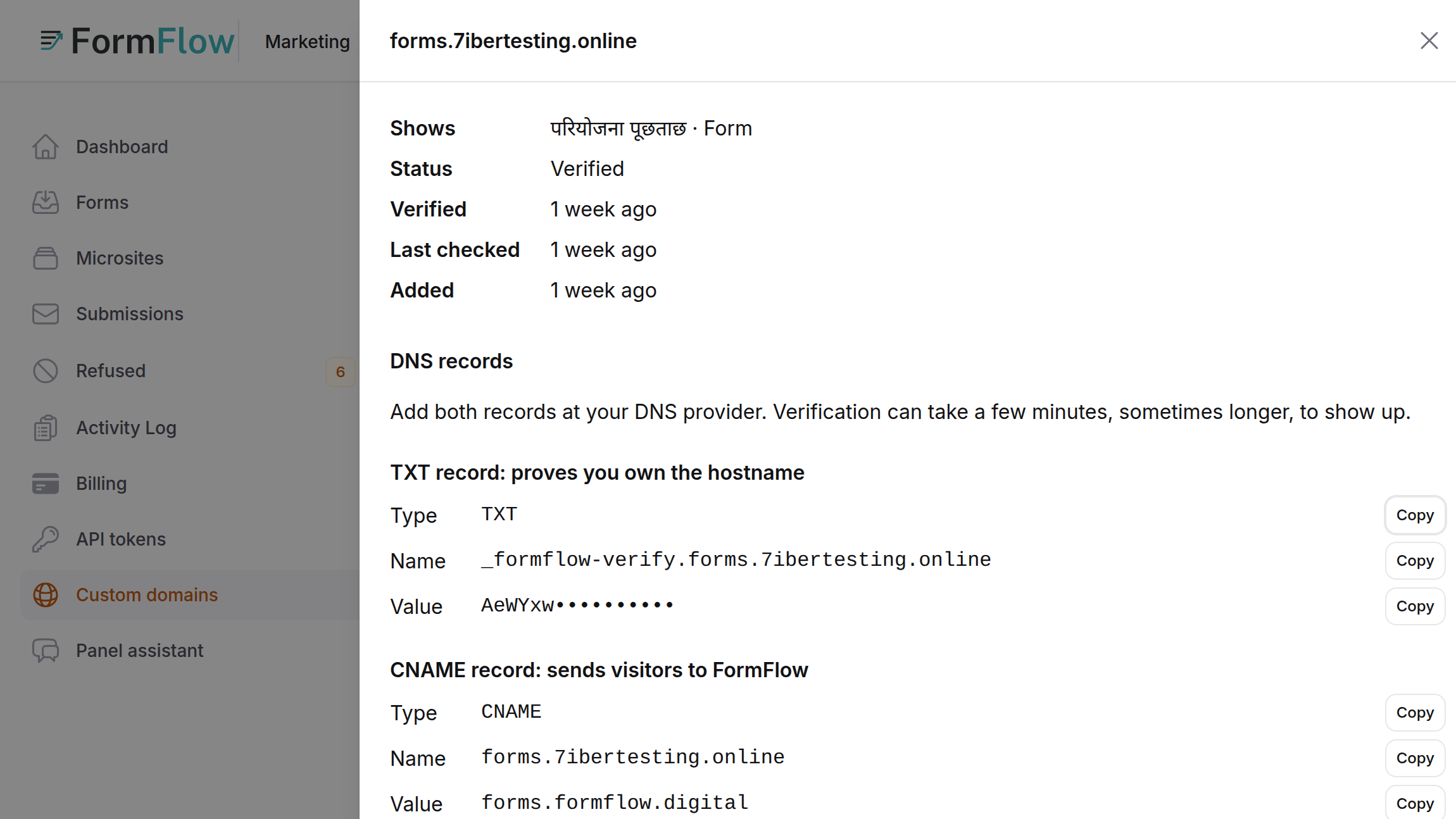
Release v1.44.0 shipped on 10 October 2026. On the Starter and Pro plans, a Team can now serve one of its Hosted pages or Microsites from a subdomain it owns, such as forms.example.com, instead of FormFlow's hosted address. The Changelog entry describes it in a paragraph. This post covers how to set one up, how FormFlow checks it and what it will not do.
What a Custom domain is
A Custom domain is a hostname you own and have proved. It shows exactly one page: the Hosted page of one of your Forms, or one of your Microsites (see Microsites from ready-made blocks). That page appears at the root of the domain. The pricing table, updated in v1.44.1, lists one Custom domain on Starter and five on Pro. On a plan without any, adding one is refused with a message that Custom domains are not part of your plan.
Adding one
Open Custom domains in the panel and press Add domain.
Enter the hostname, a subdomain you own such as forms.example.com. Choose whether it shows a Form or a Microsite, then pick which one.
Open DNS records for the new domain. It lists two records, each with a copy button.
Add both at your DNS provider.
Wait, or press Check now.
The two records do different jobs. The TXT record holds a token and proves you own the hostname. Its name is _formflow-verify. followed by your hostname, so for forms.example.com it is _formflow-verify.forms.example.com. The CNAME record, on the hostname itself, sends visitors to FormFlow.
How FormFlow checks it
A new domain is Pending. FormFlow checks it a minute or so after you add it, again at growing intervals, then every hour. DNS changes can take a few minutes, sometimes longer, to show up, so a failed first check is normal. When both records are right the domain becomes Verified and FormFlow issues its HTTPS certificate. If the records are still wrong 72 hours after you added the domain, it is marked Failed.
When a check fails, Check now says why:
No verification TXT record was found yet.
The TXT record does not match the token shown.
No CNAME record was found. An apex domain cannot have one, so use a subdomain.
The CNAME record does not point at FormFlow's address.
Another Team verified this hostname first.
What stays the same
The page's FormFlow address keeps working. Links you have already shared are unaffected, and so are QR codes you have printed, because they hold the FormFlow address. The tutorial on printing a QR code for your Hosted page covers that side. Adding a domain adds a second way in; it does not move anyone.
Limits
Subdomains only. A bare domain such as example.com is refused, and so are IP addresses and FormFlow's own hostnames.
One page for each hostname. For a second page, add a second hostname.
Your domain serves that page and what the page needs to work. It does not serve your panel, the sign-in page, previews or other Teams' pages.
The first Team to verify a hostname holds it. If another Team has already verified it, yours is refused.
The plan's allowance is checked when you add a domain. At the limit, remove one to add another. Removing a domain stops the page answering on that hostname at once, and you can add it again later.