
v1.65: display preferences on every FormFlow page
Release v1.65.0 puts an Accessibility options button on the website, sign-in, the panel, Hosted pages and Microsites, with text size, contrast, motion, links and spacing under the reader's control.
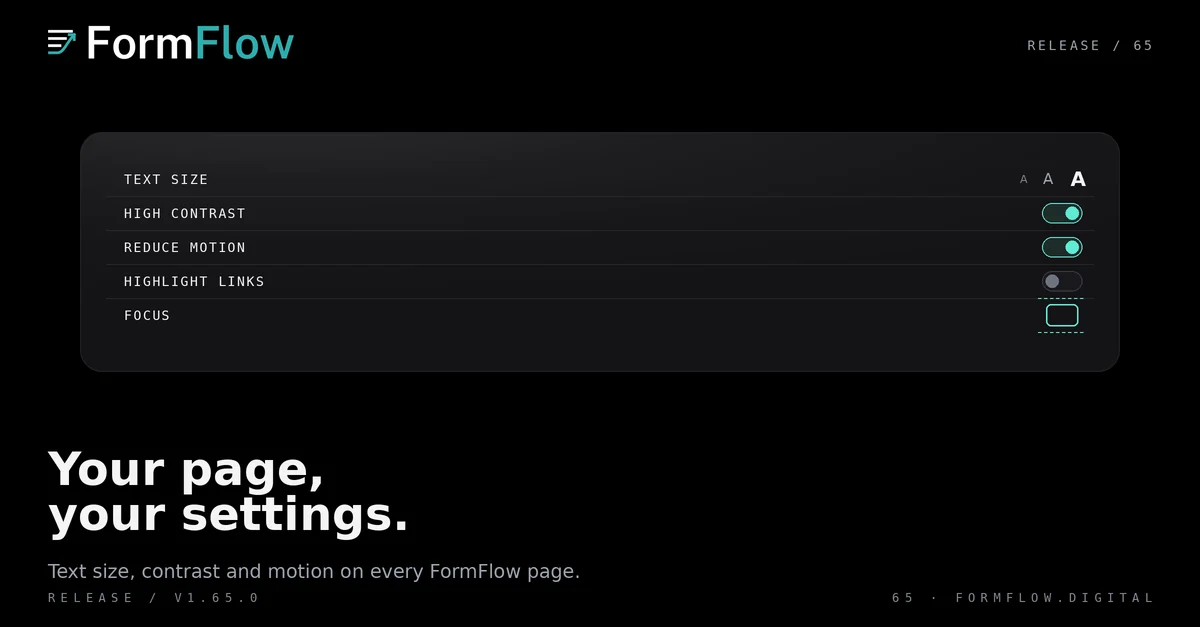
Release v1.65.0 on 16 October 2026 adds one control to every FormFlow page a person reads. An Accessibility options button opens a Display preferences panel, and the reader decides how the page looks rather than accepting the default and zooming. The Changelog entry gives the short version. This post explains what the panel changes, where the choice is kept, and what it does not claim.
One button, every surface
The button sits on the website, on the sign-in pages, in your panel, on Hosted pages and on Microsites. It is not a floating badge in the corner of the screen. On a Hosted page and on a Microsite it is in the footer, with a link at the top that appears when it receives keyboard focus, so a reader can reach it before working through a long Form.
What each preference does
Text size moves in seven steps from 90% to 200%, so each press has a visible effect and the reader can step back down after going too far.
High contrast strengthens text, borders and focus rings. It is a modifier of the current theme, not a third theme, so it works in light mode and in dark mode. On a Hosted page and on a Microsite it overrides the colours the Team chose, because the reader's contrast need outranks the branding.
Reduce motion stops transitions, animations and smooth scrolling. Highlight links and focus underlines every link and draws a thick outline around whatever has keyboard focus. Roomier text spacing opens up line height, word spacing, letter spacing and the gaps between paragraphs, which is the difference between a wall of text and something a reader with dyslexia can follow.
Where the preferences are remembered
Choices are remembered in that browser, apply from the first moment a page appears, and work without JavaScript. Until the reader changes something, each preference starts from the visitor's own system settings, so a person who has already asked their operating system for less motion is not shown motion first.
Answers already typed into a Hosted form are kept when a setting changes. Nobody loses a half-filled Form because they enlarged the text.
The accessibility statement
A new page beside the terms and the privacy policy says which accessibility standard FormFlow aims for, where it does not meet it yet, and how to report a barrier you hit. It is linked from the panel and from the website footer.
That page is the honest half of this Release. It states that FormFlow partially conforms to WCAG 2.2 level AA, that some pages meet the standard and some parts do not yet or have not been checked against it, and that no independent party has audited the product. If you work to the European standard, the EN 301 549 V4.1.1 post covers where that baseline now sits.
What did not change
An Embedded form gets no panel. A Form on your own website honours the visitor's system settings for reduced motion, more contrast and forced colours, inside the form only: nothing else on your page changes. An embed that loads through the manifest picks this up by itself. An embed copied without the manifest, including the React and Vue code, gains it only when you copy the code again.
The light and dark theme switcher is untouched and composes with high contrast. The checklist of what FormFlow has and has not tested is on the statement, not in this post.
And the button is not a compliance claim. It does not make a page conform, and FormFlow does not say it does.