
Review refused Submissions and teach the spam filter
Refused Submissions and spam are different piles. Find what your Form's settings turned away and recover it, then use Mark spam and Not spam to teach the filter. Steps and limits.
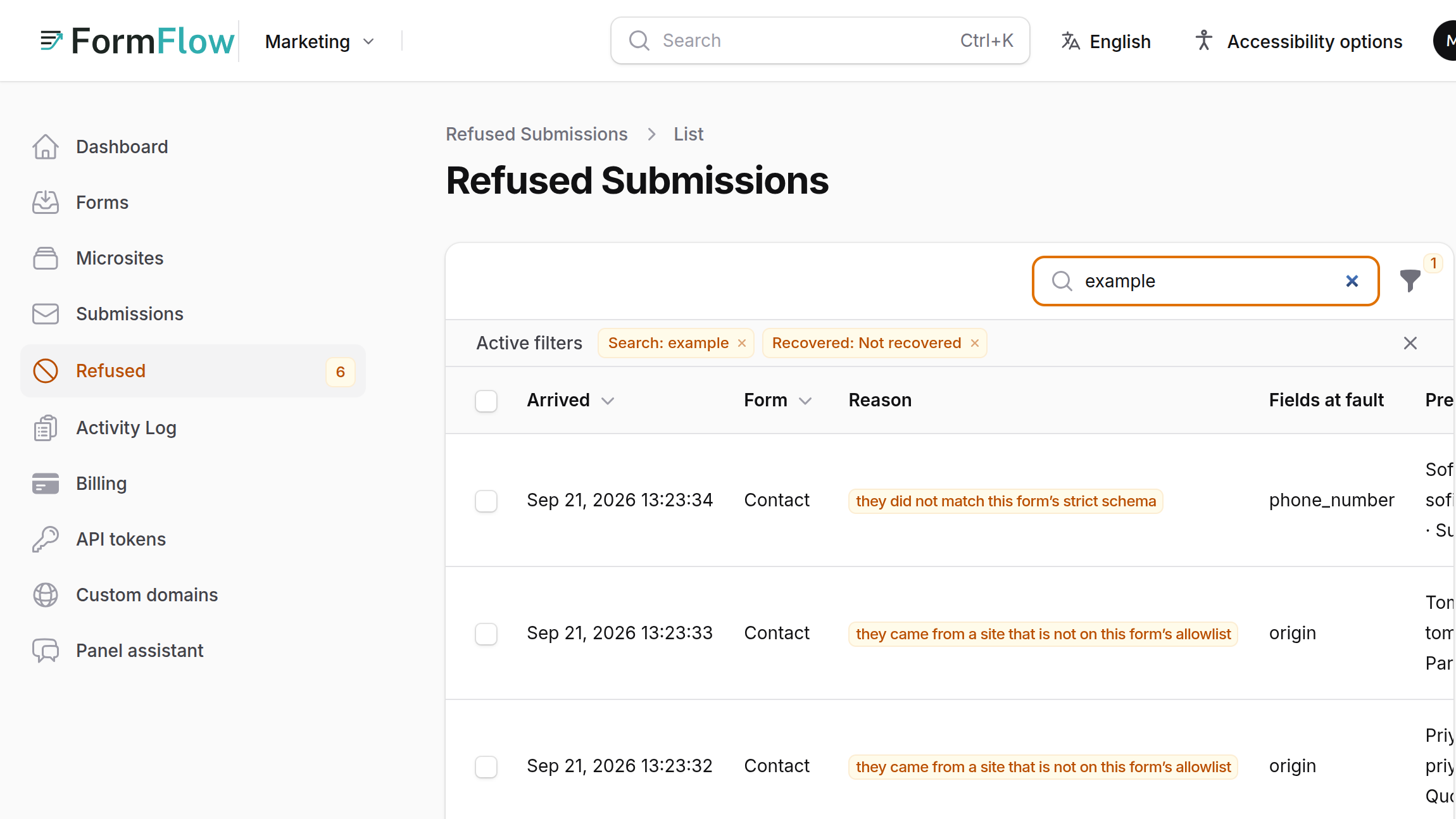
FormFlow keeps two piles that are easy to confuse. A refused Submission is one your Form's own settings turned away, such as a field it does not declare or a site that is not on its allowlist. It is kept as a record so you can fix the cause and recover it. Spam is a different judgment: the Submission was accepted, flagged as probably not genuine, and hidden from your inbox by default. You review the first pile to win leads back and correct the second to teach the filter. Spam filtering and recovery have both been there since v1.0.0. This tutorial covers both, using the search added in v1.41.0 and the buttons added in v1.50.1.
Find what is being refused
Open Refused in the panel's navigation. Its badge counts refusals still waiting to be recovered, so you need not already suspect a problem to notice one. An empty list reads "Nothing is being refused".
Read the columns: Arrived, Form, Reason, Fields at fault and a Preview of what was sent. Filter by Form or Reason. The Recovered filter starts on Not recovered, so recovered rows stay hidden until you show them.
To find one person's Submission, type a word from their answers, such as an email address or a name, into the search box. Search works together with the filters already on the list.
Open a row. Why it was refused gives the Reason and what the submitter was told, field by field. What they sent shows their answers under your question labels, in your Form's order. Where it came from shows the origin, how it arrived and the user agent.
The Submission digest also tells you. Since v1.34.0 each Form in it says how many of its refused Submissions from the last 7 days are still waiting, in a line such as "3 submissions were refused in the last 7 days", which opens the Refused list filtered to that Form. The daily digest post covers how to receive it every day. The line goes away once you recover them or they pass seven days.
Fix the cause, then recover
FormFlow keeps whole only the refusals you can act on. Examples are a Submission that did not match the Form's strict schema, one that came from a site not on the allowlist, one that breached the file rules, one that arrived after a timed Sitting closed, and one sent to a Form whose live version can no longer be read under today's rules. Refusals caused by abuse, or by FormFlow itself, are counted and nothing more.
Fix the setting that refused the rows. If the Reason is a site that is not on the allowlist, add its hostname to Allowed origins on the Security tab. If a field was missing from a strict schema, add the field on the Fields tab.
Back on Refused, tick the rows and choose Recover, or press Recover on a single row. The confirmation says they will be checked against your Form's current settings, then added to your inbox and forwarded to every destination, and that each counts toward this usage period.
Read the result. Only the ones your settings now accept are recovered. The rest stay on the list with their reason.
If your settings would still refuse them, the bulk action Unlock and recover offers the one change that frees the most of them without turning away a lead you already accepted. Its window is titled Change the setting that is refusing these, and its button reads Apply it and recover. It changes the Form's settings for real, so read what it proposes before you press the button.
Teach the spam filter
Spam does not appear in Refused. In Submissions, the Spam filter starts on Not spam, so choose Spam only to see what was flagged. Each Form has its own spam model, and the only thing that trains it is a human's judgment, which FormFlow calls a Correction.
Open Submissions, then open a Submission or find its row.
Press Mark spam if it is spam, or Not spam if it is a real lead the filter flagged. From the inbox you can tick several rows and use Mark spam or Mark not spam in the bulk actions menu. The Submission's own page has the same two buttons.
A flagged Submission nobody has judged offers both buttons, so you can also confirm that a flagged one really is spam. A button is not offered when it would only repeat the Correction already made.
FormFlow says Marked spam or Marked not spam. Once your Team has judged a Submission, its page says so under Team's judgment.
The model learns from your corrections. For words the Form has not seen yet, it falls back on what the Team's other Forms have taught it, so a new Form can flag from its first Submission. Its confident verdicts appear as one signal among the others, such as a filled honeypot, a failed Turnstile check or a disallowed origin, and the signals add up to a Submission's spam score.
Limits to know about
Refusals are kept under a per-Form daily cap, and a refused Submission holds no uploaded file.
Some refusals can be read but never recovered, such as a request with every field empty.
A filter that learns from corrections can learn a wrong correction too. If you mark a real lead as spam, mark it Not spam again.
Deleting a Submission forgets any Correction you made on it, so the filter stops learning from it.
Spam does not count toward your Submission usage or a Form's Submission cap, and it is left out of the digest and webhooks.