
Send Submissions to a Google Sheet you pick from Drive
Connect a Google account once, choose a spreadsheet and tab from Google Drive, and every accepted Submission lands as a row. What FormFlow writes, what pauses it, and how to resend earlier ones.
A Google Sheet is a good place for Submissions that people other than you will read. A Form can send each accepted Submission to one tab of one spreadsheet as a new row. Since v1.57.0 you choose that spreadsheet by browsing your Google Drive, including shared drives, instead of pasting a link. This tutorial connects Google, picks a spreadsheet, shows what FormFlow writes into it, and covers what pauses it and how to resend Submissions that arrived earlier.
What you need
A paid plan. On other plans both Team settings and the Delivery tab say "Google Sheets destinations are available on paid plans."
A Team owner to connect Google. A member sees a note that an owner can connect a Google account in Team settings first.
A confirmed email address on the account. Since v1.60.3, an account that has not confirmed its address cannot connect Google Sheets and is taken to the page that asks it to.
Connect Google once
Open Team settings and find the Google Sheets section. It says "Connect a Google account once, then choose a spreadsheet on each form."
Press Connect Google and approve the access Google asks for. FormFlow now asks only for the spreadsheets it creates or that you choose for it, never the rest of your Drive.
Back in Team settings, the section reads "Connected as" followed by your Google address.
Choose the spreadsheet for a Form
Save the Form first. For a Form you have not saved yet, the section only says to save it and then choose a spreadsheet.
Open the Form's Delivery tab and find the Google Sheets section. Its note reads "Every accepted submission is appended as a row."
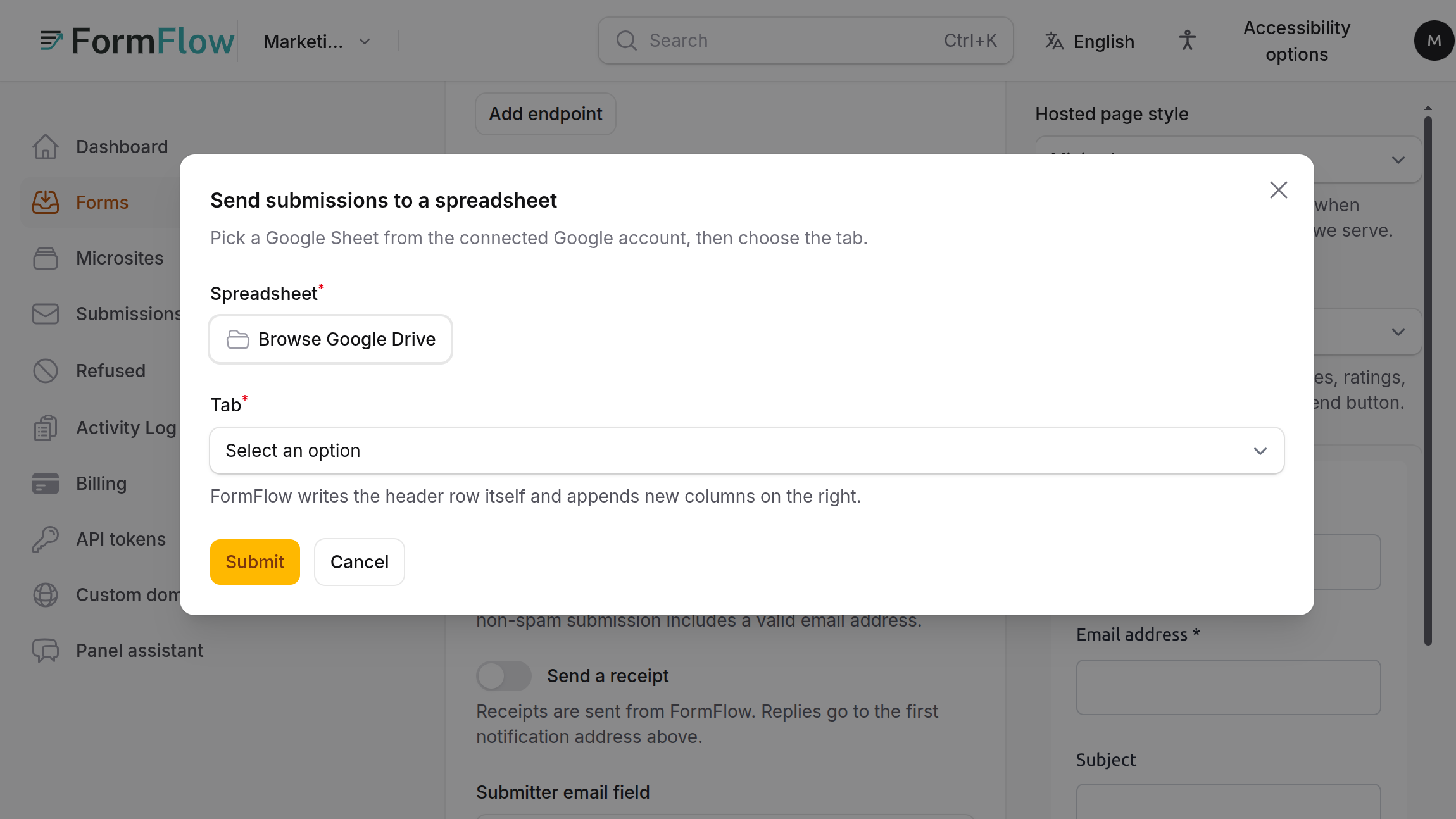
Press Choose a spreadsheet. The window is titled Send submissions to a spreadsheet. Google's picker opens, with your Drive and your shared drives.
Pick the spreadsheet, then choose the Tab. The helper text under Tab says FormFlow writes the header row itself and appends new columns on the right.
Confirm. FormFlow says Submissions will be sent to the spreadsheet by name, and the section reads Sending to the spreadsheet, tab, with the name of each.
If you would rather start fresh, press Create a spreadsheet instead. FormFlow creates a Google Sheet named after the Form followed by " — FormFlow" in the connected account and points the Form at its first tab.
Test it
Press Test. FormFlow reads the tab's header and answers "The spreadsheet is reachable" with the number of columns it has. If Google refuses, it shows the status Google returned and tells you to check that the connected account can edit the spreadsheet.
Send a real Submission through the Form.
Open the spreadsheet. The section's status line now says when the last row landed.
What FormFlow writes
Row 1 is FormFlow's. It holds submission_id and received_at, followed by one column for each of the Form's fields, in the order of the Form.
Each Submission is appended beneath it. FormFlow only ever appends. It does not rewrite earlier rows.
When a Submission carries an answer with no column yet, the column is added at the right. Nothing is reordered, so formulas that point at a column keep pointing at it.
An answer whose field is named submission_id or received_at gets its own column, answer:submission_id or answer:received_at, so it never collides with FormFlow's own.
A cell holds at most 50,000 characters. A longer answer is cut in the sheet and kept whole in FormFlow, and it no longer stops the rest of its batch from sending.
A cell whose text starts with =, +, - or @ is written with a leading apostrophe, so Sheets keeps it as text instead of reading it as a formula. A plain number is left as it is. You will see the apostrophe in the cell.
Send earlier Submissions
A spreadsheet only receives Submissions from the moment it is chosen. To fill it with the ones the Form already holds, press Send earlier submissions. The confirmation says every Submission that is not in the spreadsheet yet will be queued, and rows already sent are never sent twice. The button is disabled while the destination is paused or a backfill is already running.
When sending pauses
Retries, history and pausing work as they do for webhooks. The section's status line says which of these has happened:
Paused is your own choice with the Pause button. Press Resume to continue.
Paused until Google is reconnected means Google no longer accepts the connection. Reconnect from Team settings. Since v1.10.8, reconnecting resumes only the spreadsheets that were sending, and the ones you paused stay paused. Waiting rows then go out on their own.
Paused because this plan no longer includes Google Sheets means just that. The Form keeps its destination and its waiting rows.
N failures in a row appears when Google keeps refusing rows. Your dashboard lists the Form as "spreadsheet failing", and the usual cause is that the connected account can no longer edit the spreadsheet.
If you point a Form at a different spreadsheet or tab, it starts with a clean record. The old sheet's failures are not held against the new one. Duplicating a Form does not copy its spreadsheet. The copy starts without one.
Limits to know about
A Form has at most one Google Sheets destination, and a Team has one Google connection.
Google caps how many cells a spreadsheet may hold, which is rows times columns. A busy Form with many fields grows both. The Google Sheets cell-limit post explains the ceiling. Check it before you point a Form at a sheet you already use for something else.
FormFlow owns the header row. Do not rename or reorder its columns in the sheet.
A Google Sheet is a copy. Deleting Submissions in FormFlow, or setting a retention period, does not remove rows already sent.