
Start a Form from an HTML form you already have
On the new-form page, paste the HTML of a form you already run, or give the https address of its page, and FormFlow drafts the field list for you to review. Nothing is saved until you press Create.
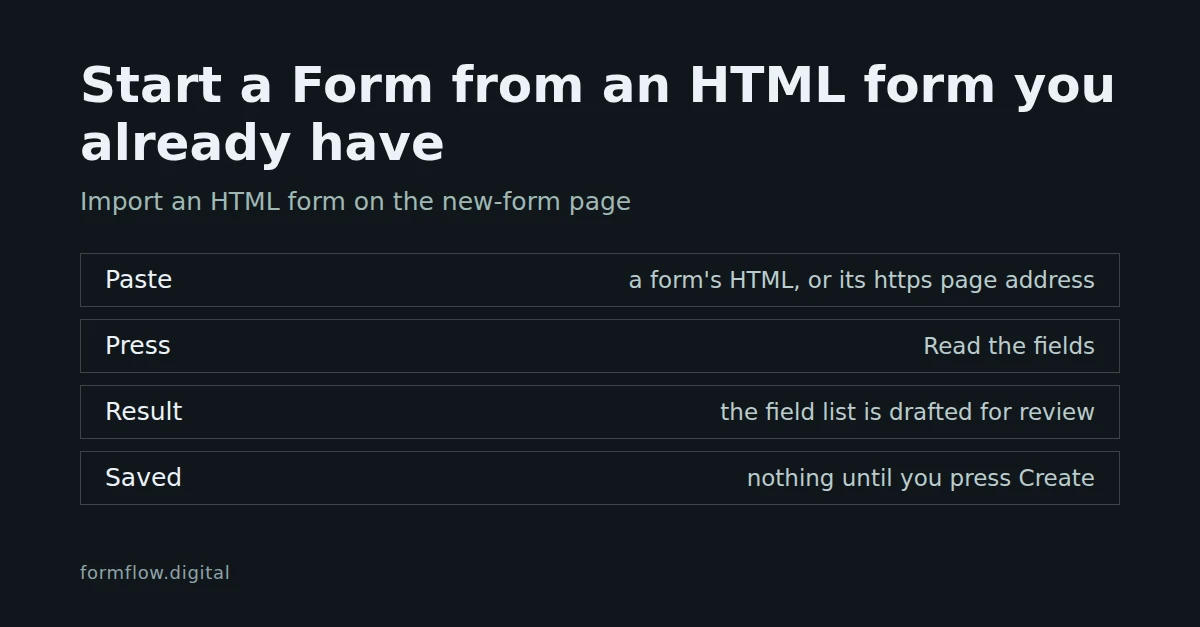
If you already run a form on a website, you do not have to retype its questions to move it to FormFlow. The new-form page can read the form's HTML and draft the field list from it, either from HTML you paste or from the address of the page it lives on. You review the draft, and nothing exists until you press Create. Pasting arrived in Release v1.84.0 and importing from a page address in v1.89.0; the Changelog lists both as available on every plan.
Before you start
You need to be on the new-form page with an empty field list. Both import buttons sit under Or start from, beside Import a spreadsheet, and they disappear once the list has fields in it.
For a paste: the form's HTML, up to 100,000 characters.
For a page address: a public page whose address starts with https. A page that is not on the public internet is not read.
Paste the HTML
Open the new-form page and, under Or start from, choose Import an HTML form.
Paste the markup into the field labelled Your form's HTML.
Press Read the fields.
A notice says how many fields were drafted, for example "2 fields drafted. Review them before creating the form." The field list is now filled. If the paste holds nothing a Submitter can answer, you see "No form fields were found in that HTML." instead.
Carry on through the steps, correct anything the draft got wrong, and press Create.
Your HTML is parsed and forgotten. It is not kept, and nothing is fetched.
Or give the page address
Choose Import from a URL, enter the address in Your form's page address (the placeholder shows https://example.com/contact) and press Read the fields. FormFlow requests that one page, reads its first form exactly as it would read a paste, and keeps neither the address nor the page.
It makes one request, waits up to 10 seconds and reads at most 1 MB.
It never follows a redirect. If the address redirects, the message names where it points, and you can use that address instead.
The request identifies itself as
FormFlow-PageRead. If your site blocks automated visitors and answers with an error, allow that user agent.It is a plain request for the page's HTML. A form that a script draws after the page loads is not in what FormFlow receives; paste its HTML instead.
Each Team can read ten pages a minute. That budget is shared with the other features that read a page, so a busy minute can answer "Your team has read 10 pages this minute, so nothing was fetched".
When a page cannot be read, the message says why (not on the public internet, refused the request, no answer within 10 seconds, not an HTML page, larger than 1 MB, or redirected) and ends with "Paste the form's HTML instead."
What the draft contains
Which form: the first
<form>that has at least one answerable control. If no form has one, FormFlow reads the controls anywhere in the document.What counts as a field: text, email, phone, URL, number, date, time and file inputs keep their type, text areas and dropdowns become their own types, and any other input type is read as text. Hidden, password, submit, button, reset and image controls are left out, as are controls with no
nameand controls that are disabled or sit inside a disabled fieldset.Choices: radio buttons with the same name become one choice question. Checkboxes with the same name become one question that accepts several answers, as does a dropdown marked
multiple. A single checkbox stays a checkbox.Labels: the control's own label, else its
aria-label, else its placeholder, else its name made readable. A group is asked by its fieldset legend.Options: a dropdown's first option is dropped when it is disabled or has an empty value, because that is the "Choose..." prompt. A choice with fewer than two options is skipped.
Required: a control, or any member of a group, marked
requiredmakes the field required.Names: the control's name, with a trailing
[]removed and other odd characters turned into underscores. A repeated name gets_2,_3and so on, and names FormFlow reserves, such as_tokenandg-recaptcha-response, are skipped.
What to check before you press Create
Only the name, label, type, required flag, options and placeholder are carried over. Other attributes, scripts and your server's own validation are not.
Hidden fields are left out. If your form posts a campaign value, add it in FormFlow; Pre-fill a Form from its link and carry a campaign source shows how.
A file input drafts a file field. Whether your plan allows file uploads is decided when the Form is created, as it is for any Form.
The import fills an empty list only. To start again, remove the fields first; the buttons come back when the list is empty.
What this does not do
It brings fields in, not your existing submissions or your page. To build a Form from a sheet of questions instead, see Build a form from a spreadsheet of questions. To put the finished Form back on your website, see Embed a Form on your own website with the generated component.