
File your Forms in Folders
A Folder is a short label, such as a client or a site, that a Form carries. Set it beside the Form's name, then show, filter or group the Forms list by Folder, and move several Forms in one step.
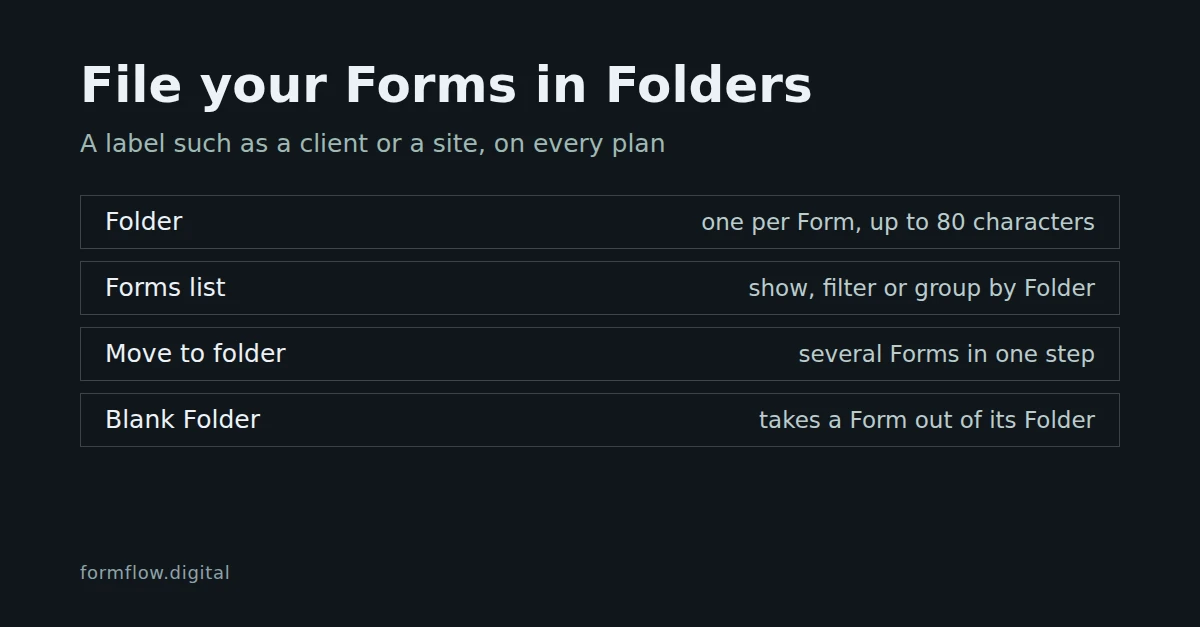
A Team that runs a Contact form for three clients and a Newsletter form for two sites ends up with one flat list of Forms. A Folder fixes that with a label. It is a short piece of text that a Form carries, such as a client or a site, and the Forms list can show, filter and group by it. Folders arrived in Release v1.90.0 and, per the Changelog, are available on every plan.
What a Folder is
A label, not a container. A Folder is free text of up to 80 characters, stored on the Form. There is no Folders screen and no Folders table.
One per Form. A Form is in at most one Folder, or in none.
Yours alone. A Folder belongs to your Team; suggestions and filters list only your Team's Folders.
Only while it is used. A Folder exists while at least one Form carries it, and disappears from the suggestions when the last one leaves.
What you type is tidied on the way in. Extra whitespace is squished, a blank value means no Folder, and a name that matches one of your Team's Folders without regard to case takes that Folder's spelling. So "acme " and "Acme" are one Folder, not two.
File a Form
Open the Form in the editor.
Find the Folder field next to the Form's Name. Its placeholder reads "No folder".
Type a Folder, or pick one of the suggestions, which are the Folders your Team already uses.
Save the Form. Clear the field and save to take the Form out of its Folder.
Find your Forms by Folder
On the Forms list there are three ways to use the label.
Show a Folder column. It is hidden by default; turn it on from the table's column toggle. A Form with no Folder shows "No folder".
Filter by Folder. The Folder filter lists your Team's Folders, plus "No folder" for the Forms that have none.
Group by Folder. Grouping is off until you choose it. Each group is titled with the Folder's name, and the Forms with none sit under "No folder".
Move several Forms at once
On the Forms list, tick the Forms you want to file.
Choose Move to folder from the bulk actions.
Type a Folder, or pick a suggestion, and confirm. Leave it blank to take the ticked Forms out of their Folders.
You see "Moved to folder" when it is done. The move touches only the ticked Forms in your Team, and only those you are allowed to edit. The same tidying applies as in the editor, and a name over 80 characters is refused.
A duplicated Form keeps its Folder. For making the copy itself, see v1.13: duplicate a form in one step.
Limits to know about
No rename. To rename a Folder, move all of its Forms to the new name with Move to folder.
No empty Folders. You cannot create a Folder before a Form is in it.
No settings of their own. A Folder has no colour, and it does not change how any Form in it behaves.
Not in the activity log. A Folder is a filing label, so changing one is not recorded there.
A stale editor tab is refused. Moving a Form updates its settings baseline, so saving from an editor tab opened before the move is refused as out of date. Reload the Form and save again.
What this does not decide
It does not decide how many Folders you need or what to call them. Pick the unit you search by, whether a client or a site, and keep the spelling consistent; the case-insensitive matching forgives capital letters, not different words. A Folder also does not limit who can see a Form: it is a way to find Forms, not a permission.