
Run a timed quiz that admits only your Roster
Mark answers against a key, give each person a passcode, set a time limit, and follow who has started, submitted or run out of time on the Roster. Steps, trade-offs and what a Roster cannot prove.
A timed quiz for named people needs three things: questions that are marked as they arrive, a way to let in only the people you invited, and a clock. FormFlow has had all three since v1.0.0, and v1.30.0 added the Status filter on the Roster that this tutorial leans on during a sitting. We build the quiz, admit a Roster, set the time limit, and then follow the sitting. Along the way it says plainly what a passcode does and does not prove.
What you need
A paid plan. Marking is locked with "Marking is available on paid plans." and Rosters with "Rosters are available on paid plans, with hosted pages."
A published Hosted page. Only a Hosted page can serve a marked Form or a Roster, because a passcode can only be asked for on a page FormFlow serves.
Build the paper
Create a Form. In the first step, What are you making?, choose Quiz / Exam. It adds three marked questions, with the correct answers already set, and a pass mark of 70%. You can also describe the quiz and let FormFlow draft it, as the v1.1 post explains, or build it by hand on the Fields tab.
On the Fields tab, open each question that offers options. Set Correct answer. Set Marks for this question if it is worth more than one mark, which is the default. Optionally fill in Why that is the answer.
Once any question has a key, a Marking section appears. It reads "This paper is out of N marks." and holds the Pass mark as a percentage. Leave Pass mark empty to show a mark without passing or failing anyone.
Leave Show the correct answers off unless this is a practice quiz. Its helper text warns that anyone who submits once can read the whole answer key from their own result.
A Form with an answer key is always in Strict mode, whether or not you set it, because a question can only be marked against the options it was asked from.
Admit only your Roster and set the clock
Open the Hosted page tab and turn on Publish a hosted page.
Under Who may fill this in, turn on Only people on the roster.
Set Time limit, in minutes, from 1 to 1,440. Its helper text says the clock counts from the moment each person signs in and keeps running if they close the tab. When it runs out, their answers are submitted as they stand, unanswered questions included, rather than the whole attempt being refused. Leave it empty for no time limit.
Save the Form. A Roster section now appears under the Form.
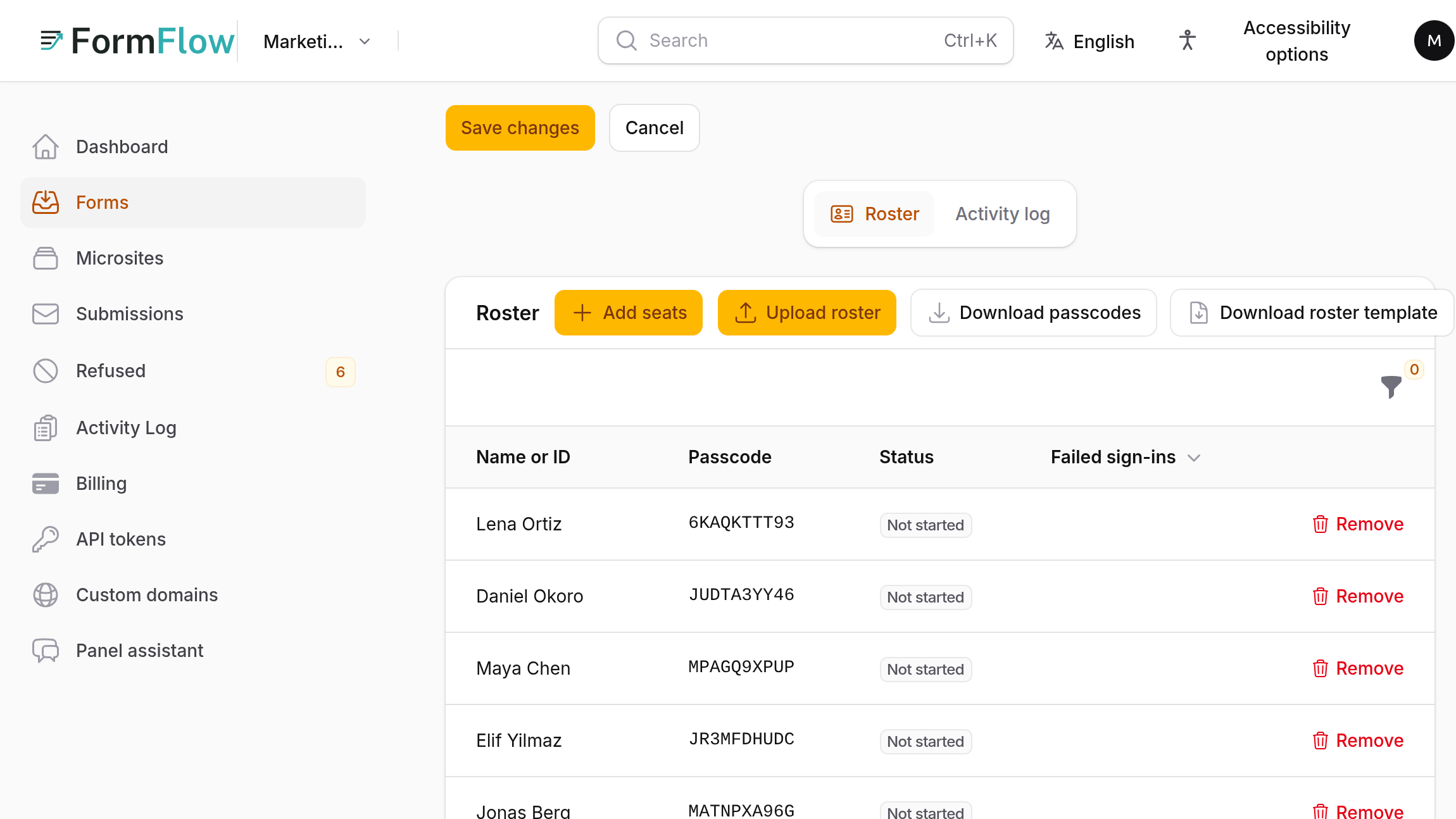
In the Roster, press Add seats and paste one name, ID or email per line, or press Upload roster with a CSV or XLSX file. Download roster template gives you the layout. Each new line gets a passcode, and lines already on the Roster are left alone.
Press Download passcodes and send each person their own. FormFlow does not email them, because you know which address belongs to which name and it does not.
A Form can hold only so many seats. If an import runs past that limit, the notification says how many were left out.
What the participant does
They open the Hosted page and see a sign-in that reads "Sign in with the name and passcode you were given." They enter Your name or ID and the Passcode. The questions are behind that step. A seat is worth one attempt: it is spent by an accepted Submission or by its own deadline passing, and only you can make it usable again.
Follow the sitting
The Roster is written to be read while people are sitting. Each seat shows a Status in words: Not started, "Sitting, 28 min left", "Submitted" with the date and time, or "Time ran out, nothing submitted". A Failed sign-ins column counts wrong attempts.
Pick one or more values in the Status filter. To see everyone who has not handed anything in, choose Not started, Sitting and Time ran out, nothing submitted together.
Reload the page to refresh. The filter stays on across a reload.
Press Download passcodes while the filter is on. It writes only the seats the filter shows, to a file whose name ends in "filtered", so you can remind exactly the people who need it.
A submitted seat shows the date as well as the time, so a paper handed in yesterday no longer reads as today's.
When time runs out
On a timed Form, a paper that arrives with a required question unanswered is still accepted, so the person keeps their work. A person whose time ran out before they submitted anything and who returns reads "Your time for this form has run out." That sentence arrived in v1.33.1. Before it, they read that their seat had been used, which sounded as if a paper had gone through. A person who did submit is still told their seat was used.
To let someone sit again, press Reopen on their seat. The confirmation says it clears the seat's attempt, that the passcode does not change and that any Submission they made stays where it is. Decide in advance which attempt counts, because both will be in your inbox.
Limits to know about
The clock runs on wall time. The countdown on the page is a display. The deadline stored on the seat is what the server enforces.
A passcode shows that someone holds the passcode, not who is typing. FormFlow does not supervise anyone.
Passcodes stay readable in the Roster for as long as the seat exists. That is deliberate, so you can print the list twice. Treat the Roster like a list of credentials.
The Roster ties a Submission to a seat. Removing a seat that has produced a Submission is not offered. Erase name keeps the seat and removes the name.
With Show the correct answers on, anyone who has submitted once can read the whole key from their own result. Leave it off for a real exam.