
Invite a teammate and keep an owner
How to invite someone to a FormFlow Team, how Owner and Member roles work, and why a Team always keeps at least one Owner when you change roles or remove people.
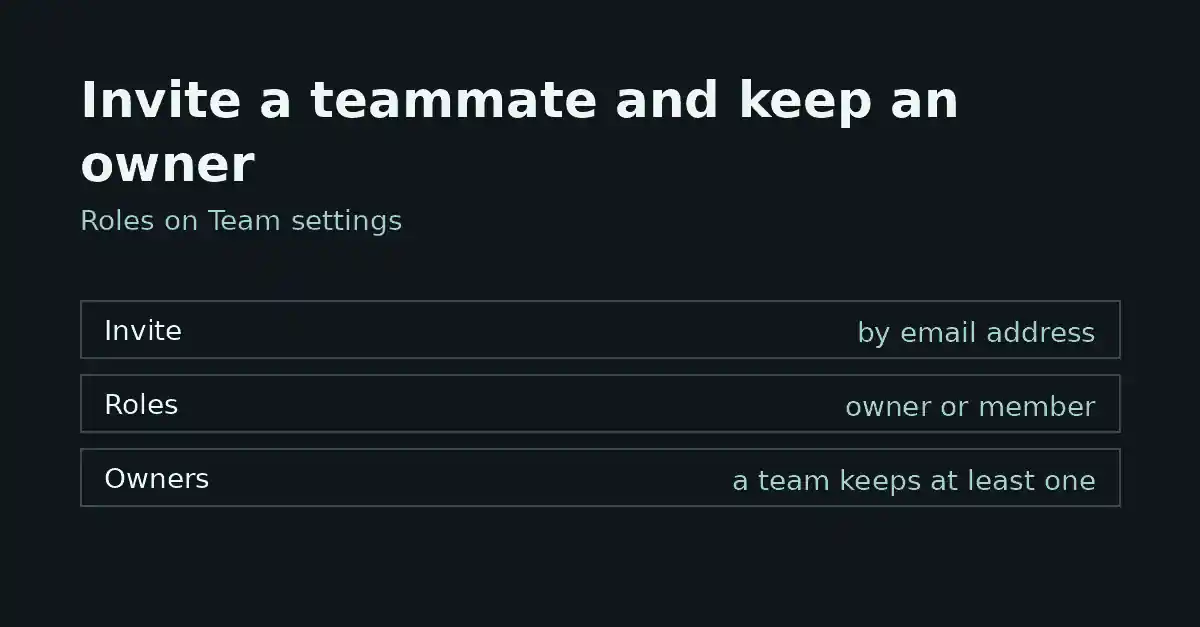
A FormFlow Team has Owners and Members. This tutorial walks through bringing a new person onto a Team, deciding which of the two they are, changing that later, and the one rule that holds throughout: a Team always keeps at least one Owner. It draws on the Release entries for v1.52.0, v1.53.0 and v1.54.0 (all 2026-10-12), a few earlier invitation entries, and the feature inventory.
How roles work
There are two roles: Owner and Member. A person has one login identity and can belong to several Teams, so the role is a property of the Membership in one Team, not of the person.
The role travels with the invitation. An invitation records which role the invitee will get, so you decide it when you invite rather than fixing it afterwards. If you pick the wrong one, you can change it later from Team settings, as described below; the invitation does not need to be redone. Changing roles, removing people and resending or withdrawing invitations are described in the Changelog as things an owner can do.
Invite a teammate
Open Team settings. Only an Owner can open it. This page lists everyone on the Team and every invitation nobody has accepted yet.
Choose Invite member, enter the person's email address, and pick the role: Member or Owner. Member is preselected.
Check that the invitation now shows among the pending ones.
The person opens the emailed link and accepts. FormFlow opens in the language the invitation was sent in.
Addresses are matched however they were typed: capitals or stray spaces around the address do not stop the invitation from matching the person's account.
Two refusals are worth knowing. Inviting someone who is already on the Team is refused, with a pointer to the Members list. Inviting an address that already has an invitation is refused too, with a pointer to Resend.
Resend or withdraw an invitation
If an invitation is unanswered or has expired, an owner can resend it from Team settings. The person gets a fresh link valid for seven days, and the old link stops working. Resend works on any invitation, pending or expired.
If you invited the wrong address, an owner can withdraw the invitation instead. Its link stops working, and the withdrawal appears in the activity log.
Change a role, or remove a member
On Team settings, an owner can make another Member an Owner, or another Owner a Member, without removing anyone. The change applies on that person's next click, and each change appears in the activity log. Your own row carries neither action: nobody changes their own role or removes themselves there.
An owner can also remove any other member. That person loses access at once, and the removal appears in the activity log. Before the removal, FormFlow names the API tokens that person created and any Google Sheets connection made through their account, so you can decide what to revoke. Naming them is not the same as revoking them: that decision stays with you.
What happens to the last owner
A Team always keeps at least one Owner. Both the role change and the removal are subject to that rule, so neither can leave a Team with zero Owners.
In practice, if you are the only Owner and want to hand the Team over, promote the other person to Owner first. Only then is there a second Owner, and only then can that new Owner make you a Member or remove you. The Release entries state the rule; they do not give the wording of the refusal, so this tutorial does not quote it.
Invite the successor with the Owner role, or change an existing Member to Owner on Team settings.
Confirm the Members list now shows two Owners.
Ask the new Owner to make you a Member, or to remove you.
Check the activity log: the role change and the removal are each recorded there.
Step one is the one that matters. Without it the Team has no second Owner, and the rule above is what stands in the way of step three.
Limits to know about
Owner-only: Team settings opens only for an Owner, so inviting, changing roles, removing members, resending and withdrawing invitations are owner actions.
Removal names tokens and a Sheets connection; it does not revoke them for you.
A resent invitation is valid for seven days. This tutorial does not state the lifetime of the first invitation.
This tutorial does not cover single sign-on or billing permissions, because the sources it relies on do not describe them.