
Print a QR code for your Hosted page at an event
Show a Hosted page's QR code in the form editor, download it as an SVG for a poster or slide, test it with a phone, and set the form to close after the event.
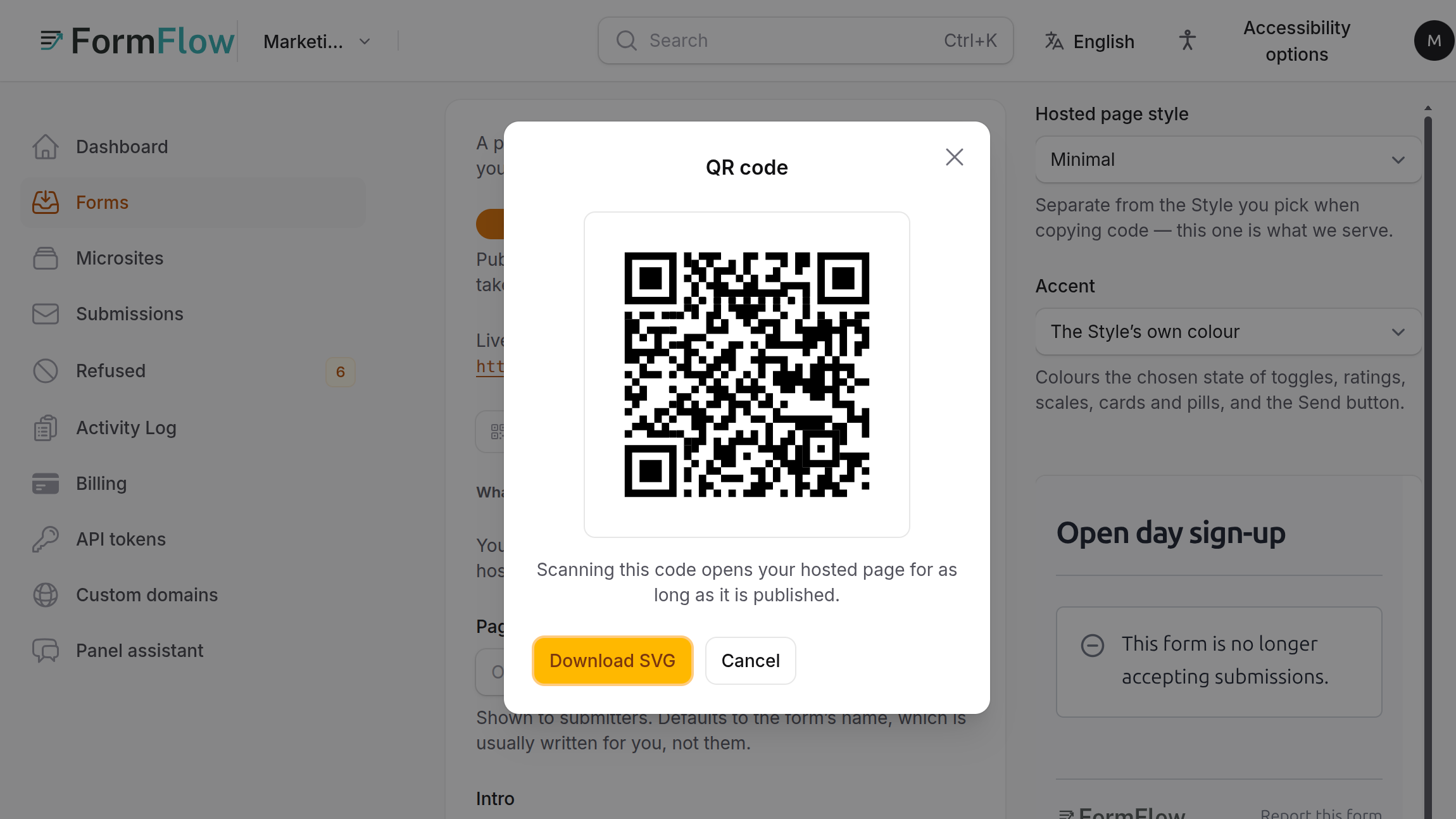
A QR code on a poster, a slide or a handout is the shortest route from a room full of people to a form. FormFlow makes one for any published Hosted page, from the form editor, since v1.15.0. This tutorial shows how to show it, download it, test it and print it, and then how to stop the form taking answers once the event is over, so a scan next month does not reach a form you have forgotten.
What you need
A Form with a published Hosted page. Publishing is on the Hosted page tab, behind the Publish a hosted page switch, which is locked with the note "Hosted pages are available on paid plans." The QR code button is offered only while the saved Form is serving its page, because a printed code must point at a page that is really up. If you have just switched Publish on, save the Form first.
Show and download the code
Open the Form in the panel and go to the Hosted page tab.
Check that Publish a hosted page is on and saved. The line "Live at" shows your page's address, and a QR code button sits under it.
Press QR code. A small window opens with the code on a white square. It stays white in the panel's dark theme on purpose, so it scans from the screen and looks like what will print. The line under it reads "Scanning this code opens your hosted page for as long as it is published."
Point a phone camera at the screen and confirm your page opens. Do this before you print anything.
Press Download SVG. The file is named after the Form, as its name in lowercase words joined by hyphens followed by -qr.svg. A Form called Spring Fair Sign-up downloads as spring-fair-sign-up-qr.svg.
SVG is a vector format, so the code stays sharp at any size, from a business card to a banner. Place the file into your design tool, slide deck or print layout as you would a logo.
What the code contains
The code holds your Hosted page's permanent address and nothing else. It is not a short link, so there is no redirect service in between. That has two consequences worth knowing before you print.
It keeps working for as long as the page is published, and it does not depend on FormFlow keeping a redirect alive. If you later switch Publish a hosted page off, the page comes down and the printed code points at nothing.
It is the plain address. There is no setting to add a query string to it, so scanning it cannot carry a campaign tag the way a link with a query can. If you need that, make the code in another tool from the full link.
FormFlow draws the code in black on white with its quiet margin intact, using error correction level M, so a slightly damaged print should still read. Keep it that way. Do not invert the colours, tint it or crop the margin, and test the printed copy rather than trusting the screen.
Test the printed copy
Print one copy at the real size, on the real paper.
Scan it from the distance people will stand at, on at least two different phones.
Send a test Submission and find it under Submissions in the panel.
Delete the test Submission, or note it, so it does not skew your count.
Close the form after the event
A poster outlives its event. The closing rules from v1.11 let the form close itself, so a scan later lands on a notice and not a live form. They sit beside Accepting submissions at the top of the editor.
Set Closes at (UTC) to the end of the event. The picker works in UTC whatever the panel's timezone, and a line under it shows the same moment in yours.
Optionally set Close after (submissions) to cap the number of Submissions, for a limited number of places. Spam never counts toward the number. If both are set, whichever is met first closes the form.
On the Hosted page tab, under After submitting, write the While closed text. Say why the form has closed and where to go instead. Leave it blank and the page reads "This form is no longer accepting submissions."
Optionally turn on Show the closing time on the hosted page. The page then shows the closing time, in UTC, while the form is still open.
Save the Form. The note under the switch says when the form will close and how many Submissions it has so far.
Once a rule is met, the form stops accepting exactly as if you had switched Accepting submissions off. To reopen it, clear the rule, raise the number or delete Submissions.
Limits to know about
The QR code points at the Hosted page only, never at the endpoint, a preview or a Result link.
Download is SVG only. If your printer needs another format, convert the file in your design tool.
The closing time is in UTC. Check the converted time shown beneath it before you save.
An unpublished page cannot be reached by a code printed earlier.