
Import past Submissions from a CSV or Excel export
Owners can bring Submissions collected elsewhere into a Form from a CSV or Excel export. Match the columns to the Form's fields, name the date column, and the rows arrive dated, read and handled, outside your plan's count, notifications and integrations.
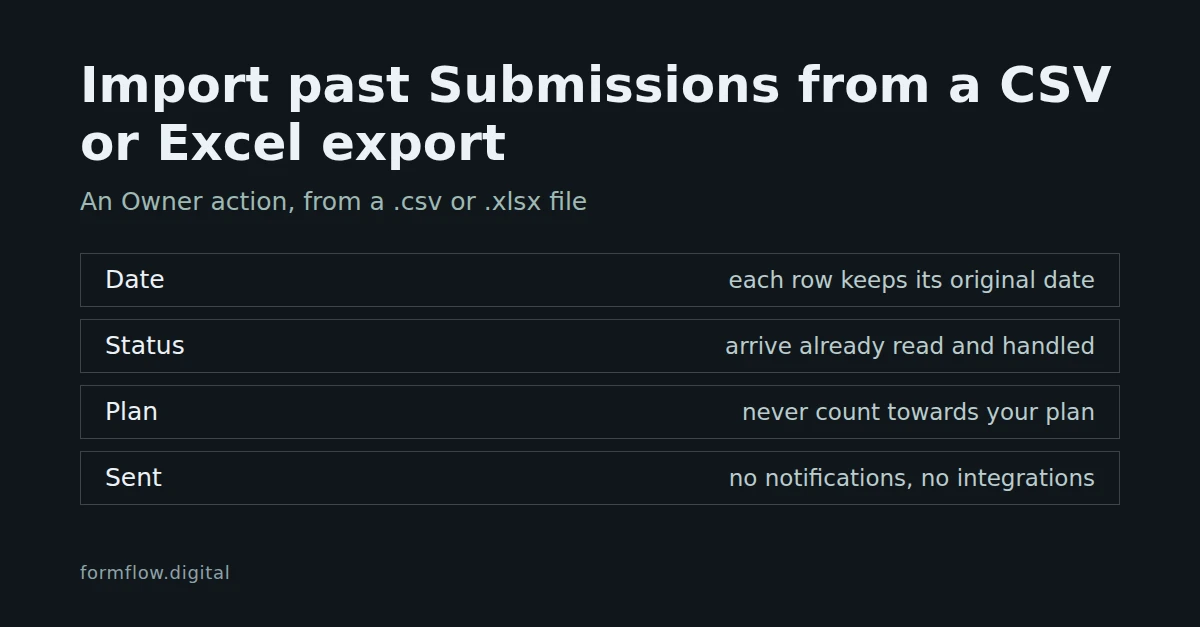
A Team moving to FormFlow usually leaves its history behind in another form service's export. An Owner can bring those rows into a Form from a CSV or Excel file, so the old leads sit beside the new ones. The import arrived in Release v1.81.0; the column matching you use to point each column at a field arrived in v1.83.0.
What an imported Submission is
It keeps the date it was originally sent, taken from the column you name.
It arrives already read and handled.
It is searchable and exportable like any other Submission.
It never counts towards your plan, sends no notification and reaches no integration. It is not delivered or emailed anywhere.
It cannot be sent a reply. The people in an old export were never collected through FormFlow, so FormFlow refuses to write to them.
Before you start
You must be an Owner of the Team. The action does not appear for other roles.
The Form must not be a graded Form or a Form that admits only a Roster. Imported rows would carry no marks and no Seat, so the action is hidden on those.
The file is an
.xlsxworkbook or a.csvfile, 2 MB at most. The first row must hold the column headers, and no two headers may be the same. Empty trailing columns are ignored.One column must hold each row's original date. The dialog expects it to be called
submitted_atand lets you change that.A Form can hold at most 5,000 imported Submissions in total, and one upload writes no more than that.
Import the file
Open the Form's edit page and choose Import past submissions.
Choose your file under Submissions spreadsheet. FormFlow reads its headers at once; if it cannot, you see "Import failed" and "The file couldn't be read, or two of its columns share a header. Export it again and retry."
Under Match columns to fields, each column of your file is listed as Column in your file, with an Import into choice beside it. A column whose header exactly matches a field name is already picked. For the rest, choose the Form's field, or Leave this column out.
In Date column, type the header of the column that holds each row's original date.
Submit the dialog. A notice reports how many Submissions were imported and anything that was left out.
Two columns cannot fill the same field. A file field cannot take a column at all, because an attachment cannot ride in a spreadsheet cell. The mapping applies to that upload only; the next upload starts from the headers again.
How dates are read
A date has to name its year, month and day outright, for example
2026-03-05or05 Mar 2026. A leading weekday is ignored. Words such as "yesterday" and a bare year are not accepted.A date with no time zone is read as UTC, so one file always imports to the same moments.
A real Excel date cell in the date column is used as the date.
A row dated in the future is not added.
A row older than the Form's Keep period is not added, so the import cannot bring back what the Form would already have deleted. See v1.18: decide how long a Form keeps its Submissions.
Read the summary
The notice says "Imported N submissions" and may add any of these notes:
N rows were already imported or repeated in the file.
N rows were left out because the Form is at its import limit.
Columns not imported: the headers you left out or that matched no field (up to ten are named).
Rows not added: the row numbers, up to ten, counted as in your spreadsheet where the header is row 1. A row is refused when its date cannot be read, is in the future or is older than the Keep period, when every mapped cell is empty, or when it holds text that is not UTF-8. A Windows-1252 export is the usual cause of the last one; export it again as UTF-8.
Some problems stop the whole import and write nothing: a file that cannot be read, repeated headers, a missing date column ("The sheet is missing the required submitted_at column.") and a mapping that no longer matches the Form's fields ("Import refused").
Uploading the same file again
A second upload adds nothing. FormFlow identifies a row by every cell in it, by header, together with its date, so the same row lands once under any mapping and in any column order. That also means two rows that are identical in every cell and date count as one. If you have genuinely identical rows, check the "repeated in the file" count in the summary.
Limits to know about
The file is read in the same request and deleted afterwards, whatever happens. FormFlow does not keep it.
Cell values come in as text under the field you chose. A date-only Excel cell in a field column becomes its date; any other date cell keeps its time.
Only an Owner can import, and only into a Form that is not graded and has no Roster.
To get Submissions back out again, including the imported ones, see Export only the columns and Submissions you need. To build the Form's questions from a sheet before importing its answers, see Build a form from a spreadsheet of questions.